




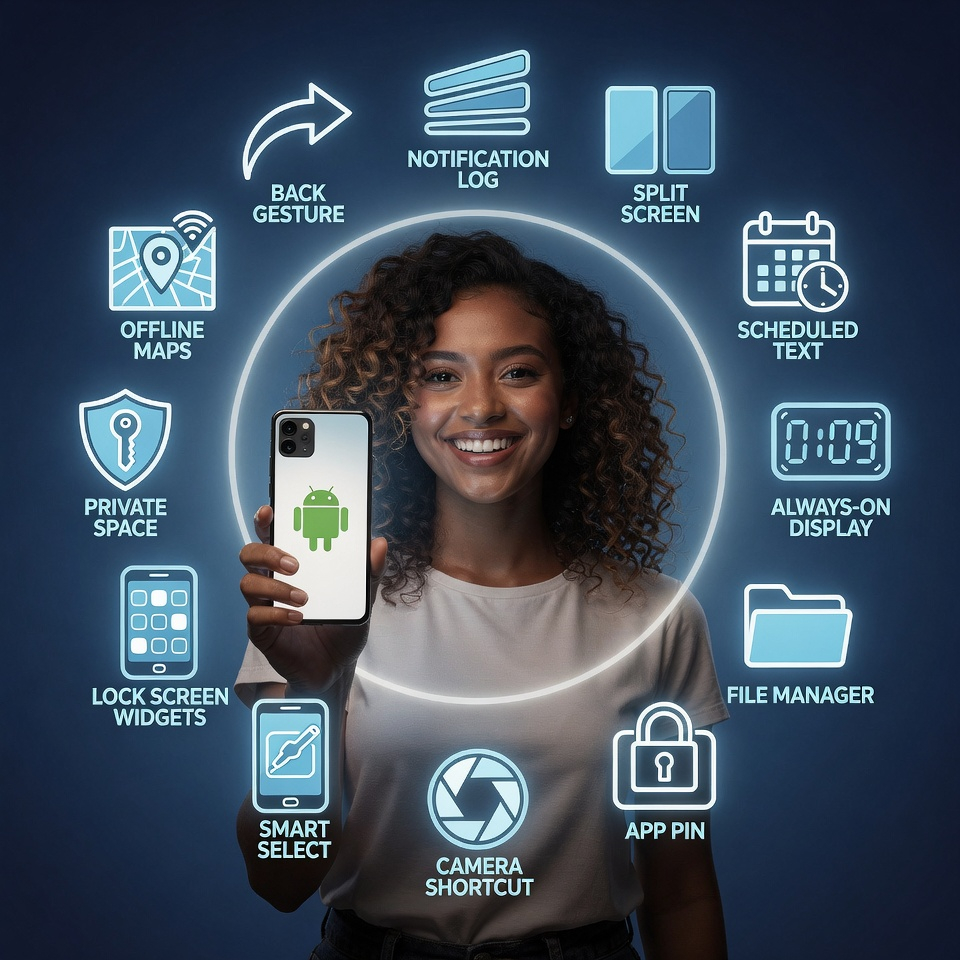
Let’s be honest. The iPhone vs. Android debate is exhausting. But here’s the truth: both platforms have genius features that the other lacks. The problem? Android hides its best tricks in menus you’ve never opened. While iPhone users brag about iMessage and AirDrop, you’ve been sitting on a goldmine of productivity, customization, and convenience.
Today, we’re digging into 12 hidden Android features that don’t just match iPhone—they flat-out beat it. Whether you have a Samsung, Pixel, OnePlus, or Motorola, most of these work across the board.
1. The Universal Back Gesture (iPhone Still Doesn’t Have This) 👈
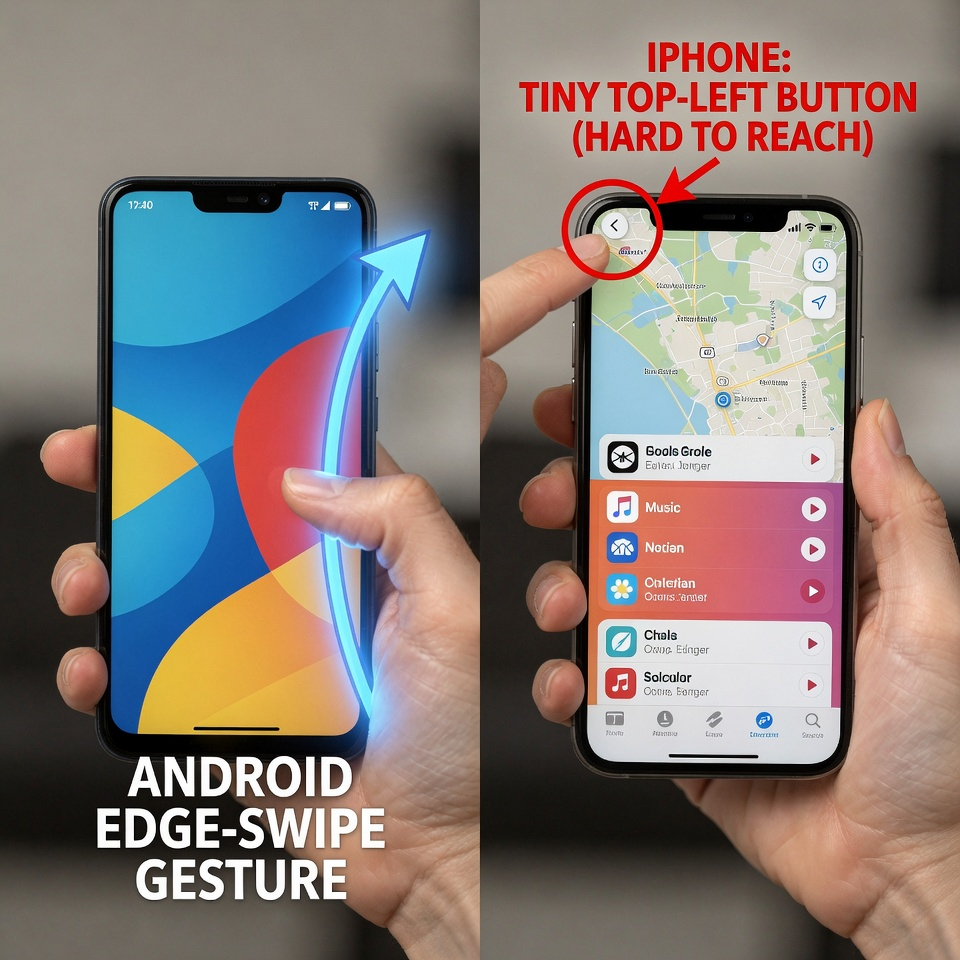
The Feature: Swipe from the left OR right edge of your screen to go back. Everywhere. Every app. Every time.
Why It Beats iPhone: On iPhone, the back button moves around. Sometimes it’s top-left. Sometimes you swipe. Sometimes there’s no back at all. On Android, a simple swipe from either edge is universal. It’s muscle memory in days.
How to Find It: Settings > System > Gestures > System Navigation > Gesture Navigation.
2. Notification History: The Oops, I Swiped It Away Lifesaver. 📜
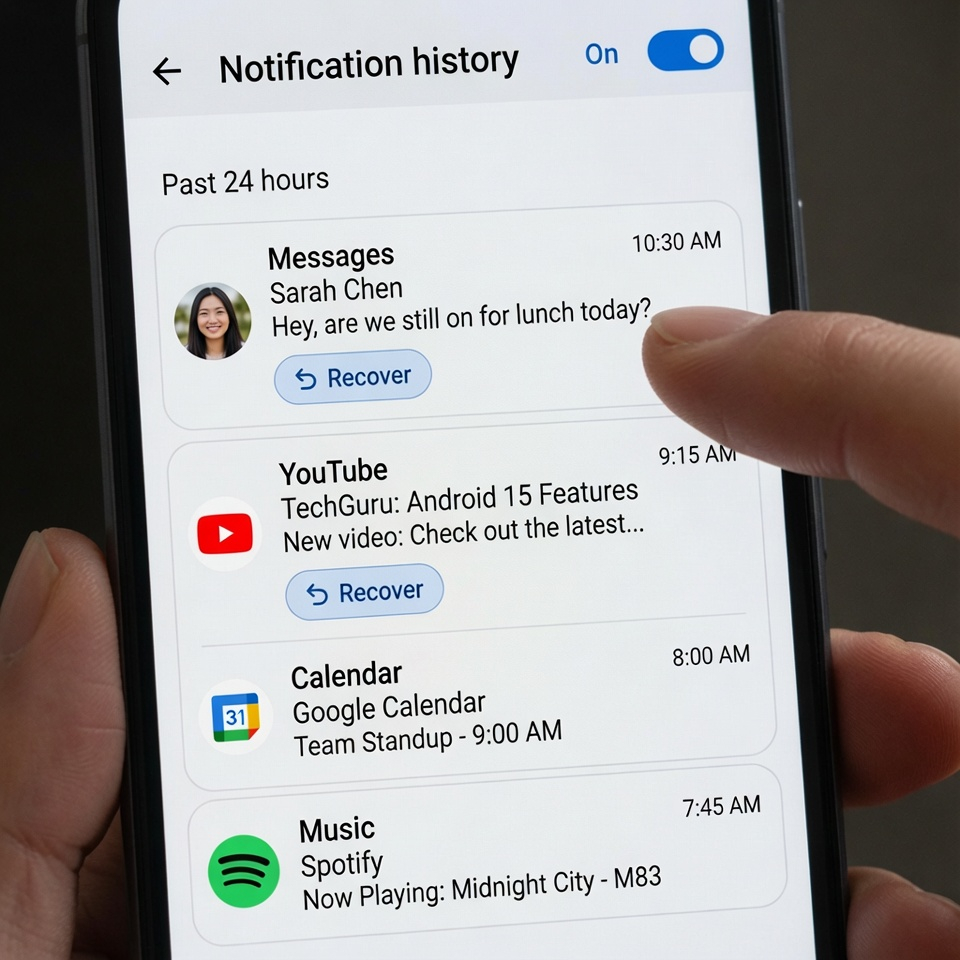
The Feature: Android keeps a log of every notification you’ve dismissed for the past 24 hours.
Why It Beats iPhone: You accidentally swipe away an important notification. On iPhone, it’s gone forever. On Android, you open Notification History and find it instantly.
How to Find It: Long-press on an empty area of your home screen > Widgets > Settings shortcut > Notification Log. Or go to Settings > Notifications > Notification History (turn it on).
Pro Tip: Add the Notification Log widget to your home screen for one-tap access.
3. Split Screen Multitasking (iPhone Only Got This in 2022 – And It’s Clunky) 📱➗
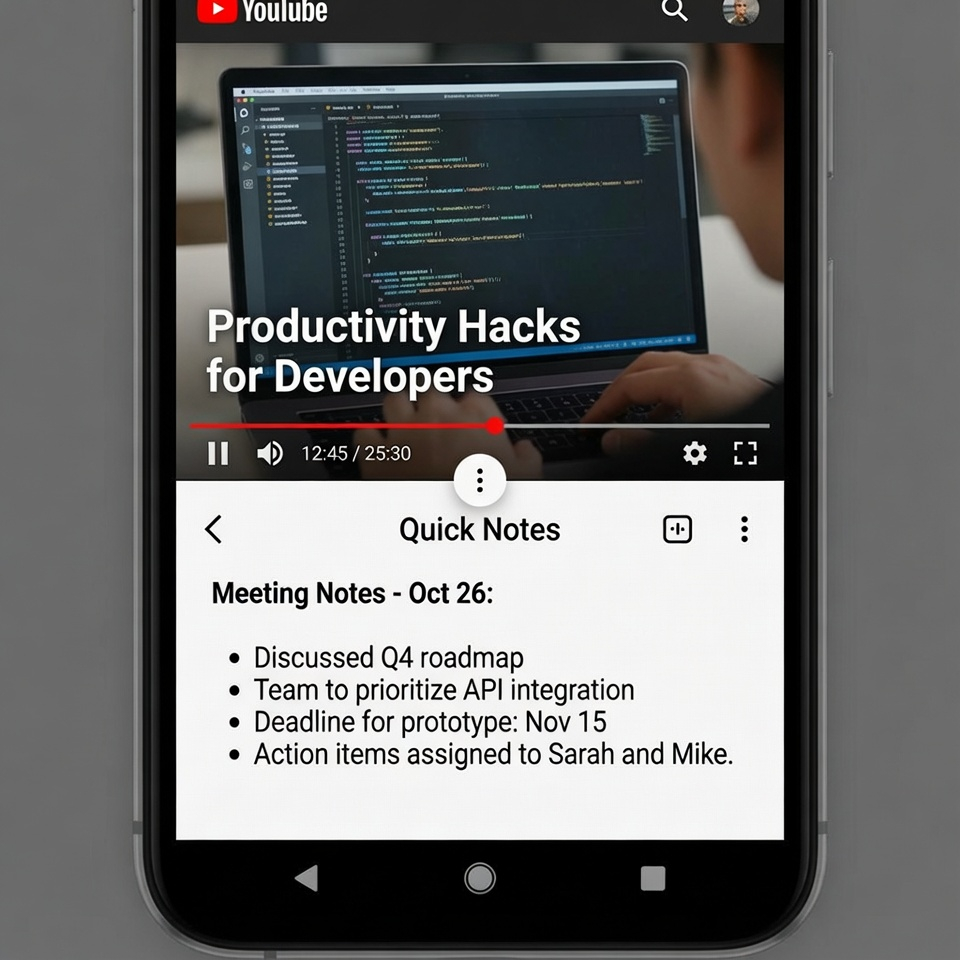
The Feature: Run two apps simultaneously, side by side, with adjustable dividers.
Why It Beats iPhone: iPhone’s Split View only works on iPads. On iPhone, you get… nothing. Android has had this for nearly a decade. Watch YouTube while texting. Compare prices while shopping. Take notes while watching a lecture.
How to Do It: Open recent apps (swipe up and hold, or tap the square button). Tap the app icon at the top > Split screen. Choose the second app.
Pro Tip: Some phones (like Samsung One UI) let you save app pairs as a single icon. One tap opens both in split screen.
4. Scheduled Text Messages (Perfect for Late-Night Thoughts) ⏰
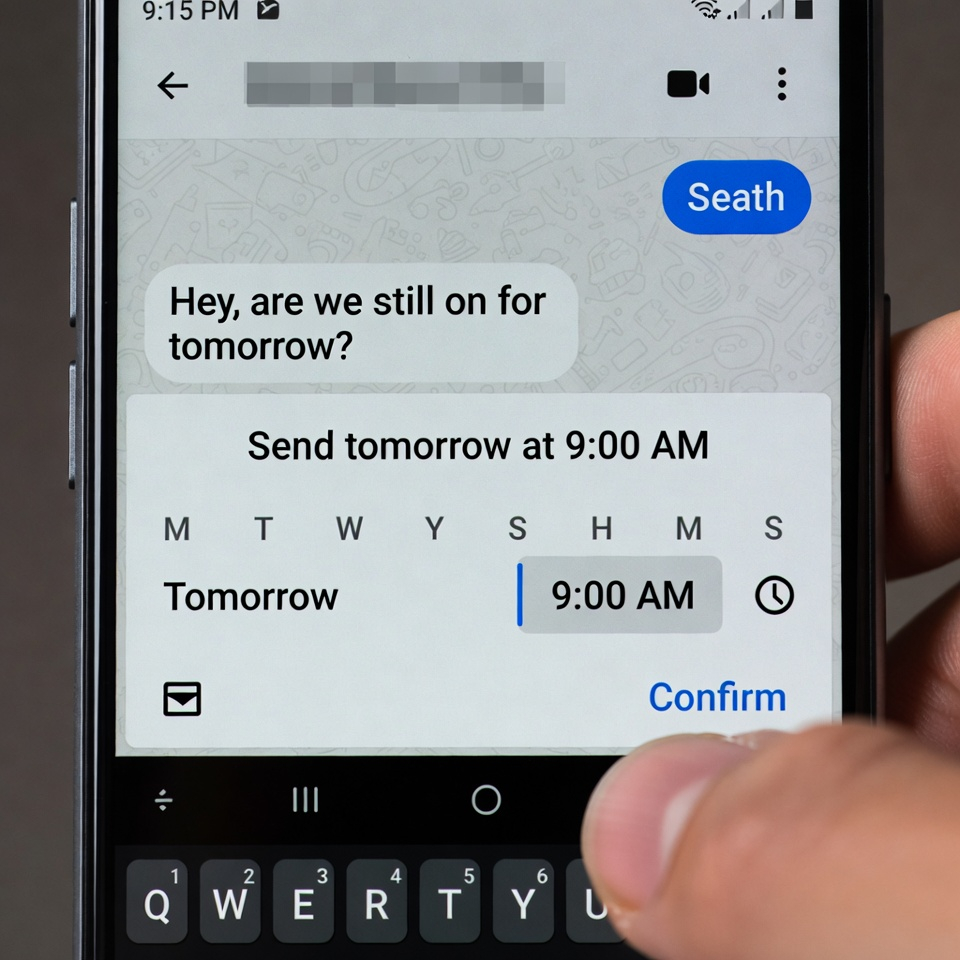
The Feature: Write a text now, schedule it to send automatically at any future date and time.
Why It Beats iPhone: iPhone has no native scheduled texting. You need third-party apps or shortcuts. Android’s Google Messages app has it built in.
How to Do It: In Google Messages, type your message. Long-press the send button. Choose a date and time. Done.
Use Cases: Birthday wishes at midnight, reminders to yourself, good morning texts when you wake up late, or work messages during business hours.
5. Customizable Always-On Display (Without Burning Your Battery) 🔋
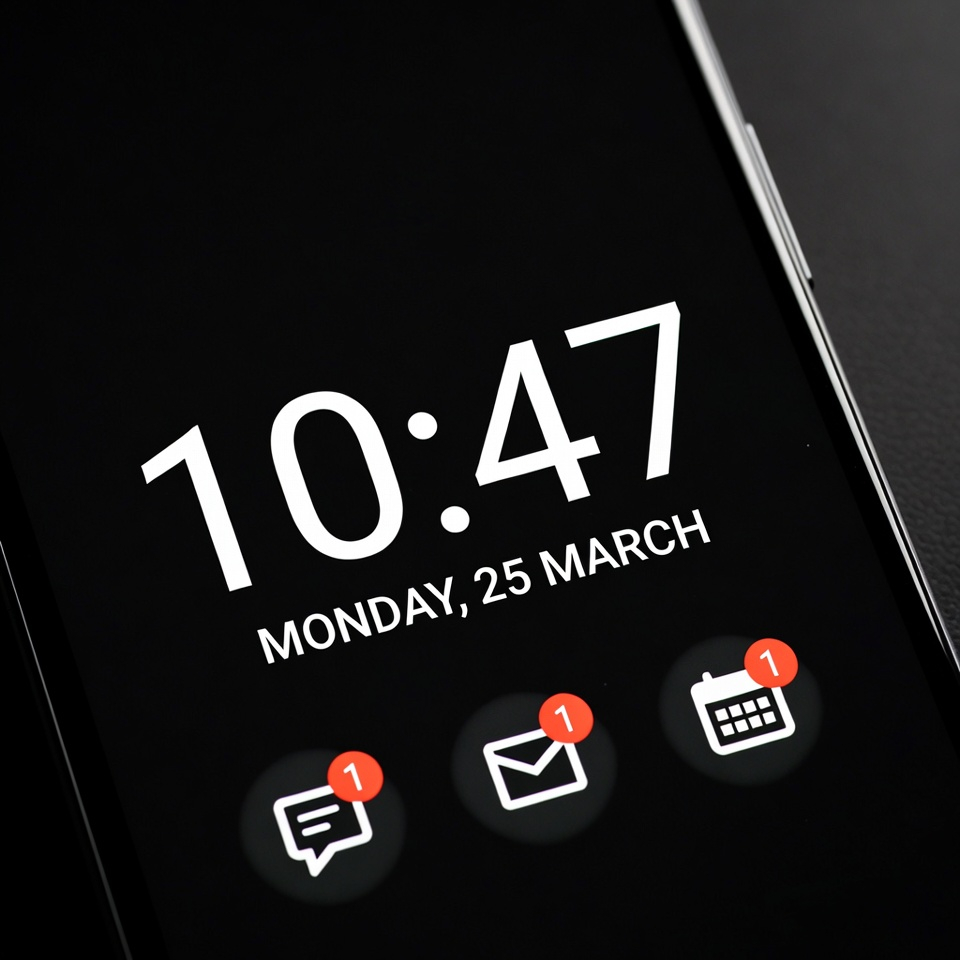
The Feature: Your screen shows the time, notifications, and music controls even when off – using minimal power.
Why It Beats iPhone: iPhone’s Always-On Display (on Pro models) is bright and drains battery faster. Android lets you customize everything: black background, large clock, hide sensitive notifications, show battery percentage, even display a personal message.
How to Find It: Settings > Lock Screen > Always On Display. On Samsung: Settings > Lock Screen > Always On Display > select layout.
Pro Tip: Set it to turn on only when you tap the screen or when new notifications arrive, saving even more battery.
6. Native File Manager (No Plugging into a Computer) 📁
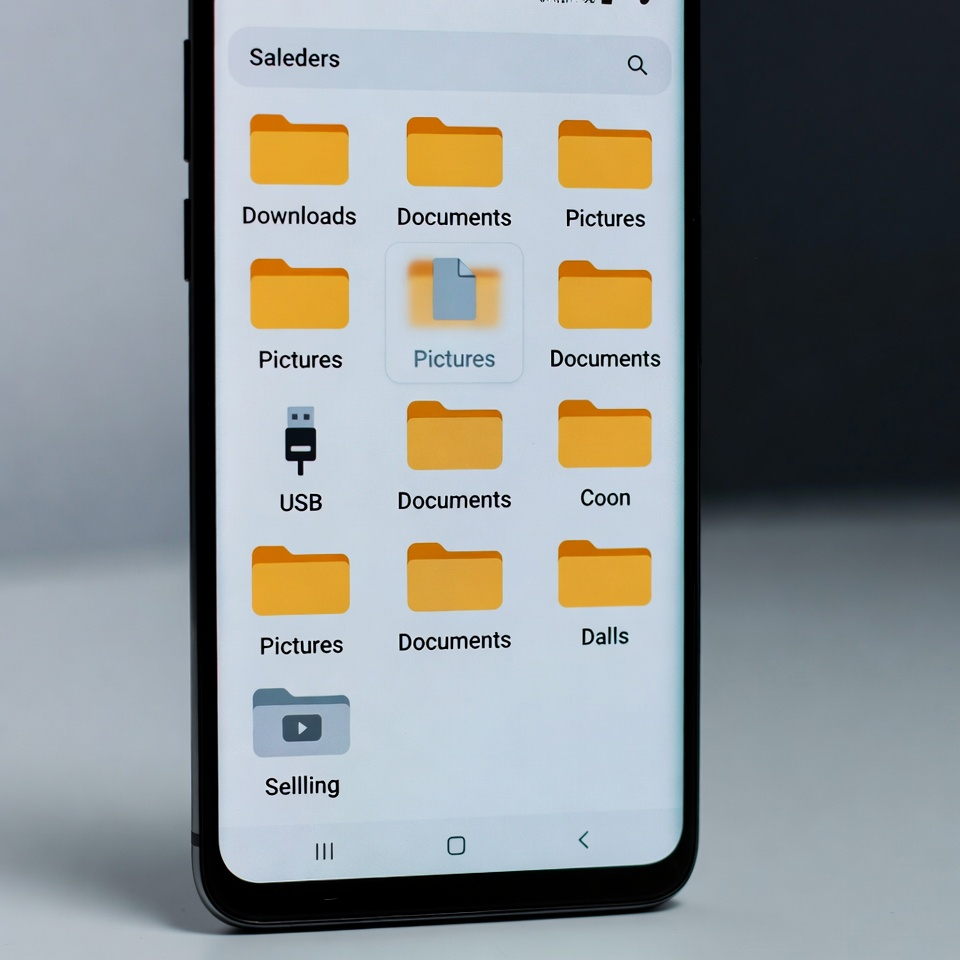
The Feature: A full, built-in file browser. You can see every folder, move files, compress ZIPs, and even access USB drives.
Why It Beats iPhone: iPhone’s Files app is limited. You can’t see system folders or easily transfer files to a Windows PC without iTunes. Android’s file manager treats your phone like a real computer.
How to Find It: Look for an app called Files or My Files (Samsung). On Pixel, it’s just Files.
Pro Tip: Connect a USB-C flash drive or external hard drive. Android will recognize it instantly. You can copy gigabytes of photos in seconds.
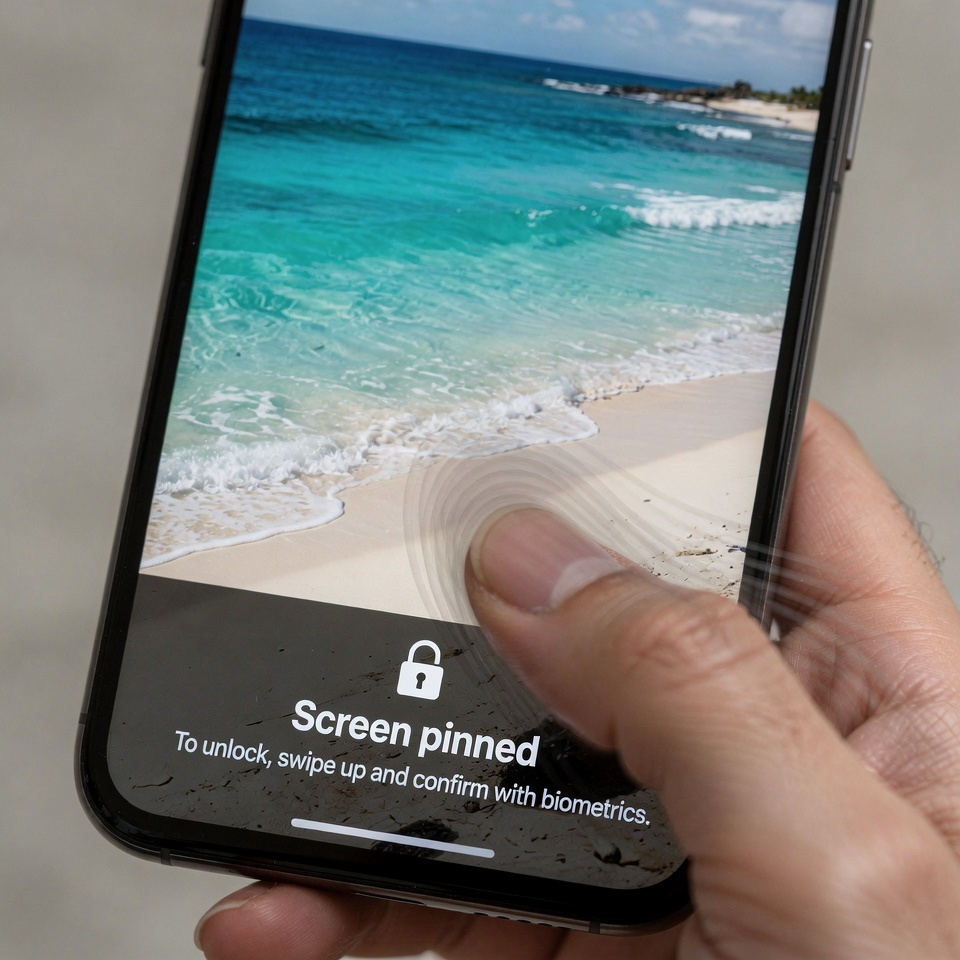
7. App Pinning (Lend Your Phone Without Fear) 📌
The Feature: Pin a single app to the screen so the person you lend your phone to can’t leave it or see anything else.
Why It Beats iPhone: iPhone has Guided Access, but it’s buried in accessibility settings and requires a triple-click. Android’s app pinning is simpler and faster.
How to Do It: Go to Settings > Security > Advanced > App Pinning. Turn it on. Then open the app you want to pin, tap the recent apps button, and tap the pin icon above the app preview.
To Unpin: Swipe up and hold (gesture navigation) or press back + recent (button navigation).
Use Case: Let a kid watch a video, let a friend make a call, or hand your phone to a stranger to show a map.
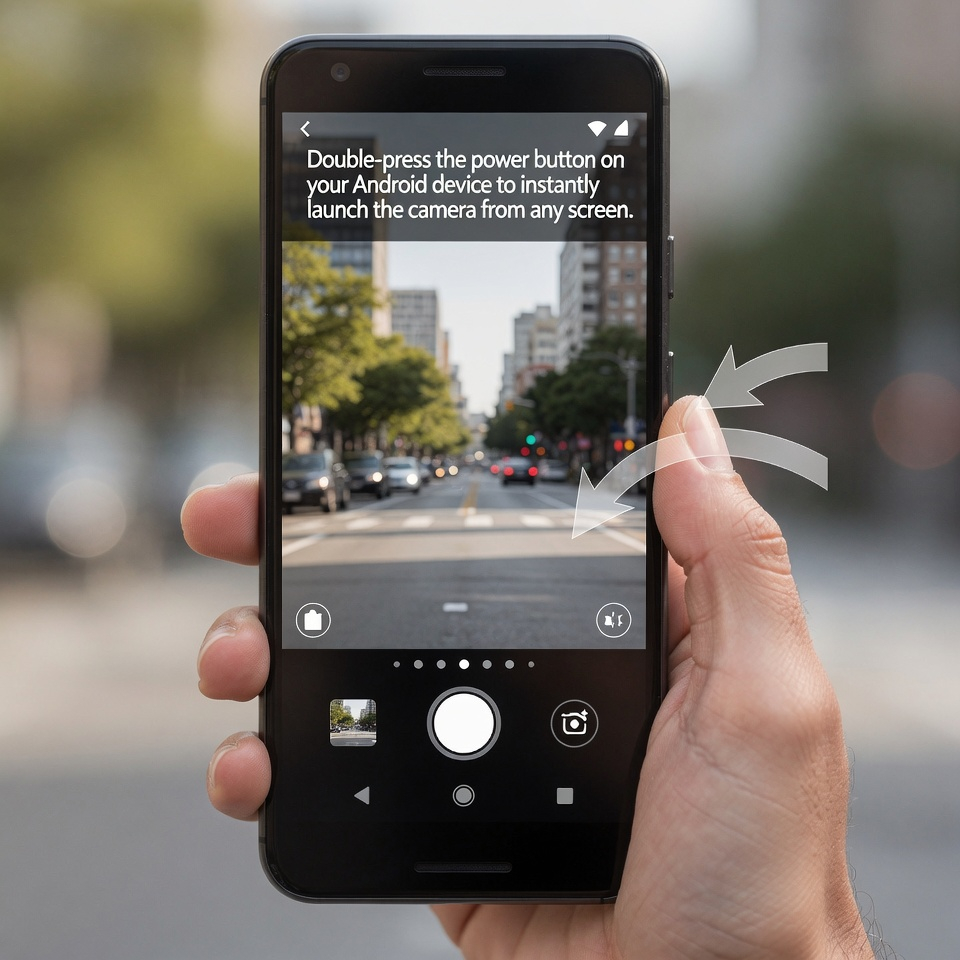
8. Double-Tap Power Button for Instant Camera. 📸
The Feature: Press the power button twice quickly, and the camera opens instantly – even from a locked screen.
Why It Beats iPhone: iPhone has a similar feature, but it’s slower (press and hold side button, or swipe left on lock screen). Android’s double-tap is faster and works from any screen.
How to Enable It: Settings > System > Gestures > Quickly open camera. Toggle on.
Pro Tip: On some phones (like Pixel), you can double-tap the power button to open any app you choose.
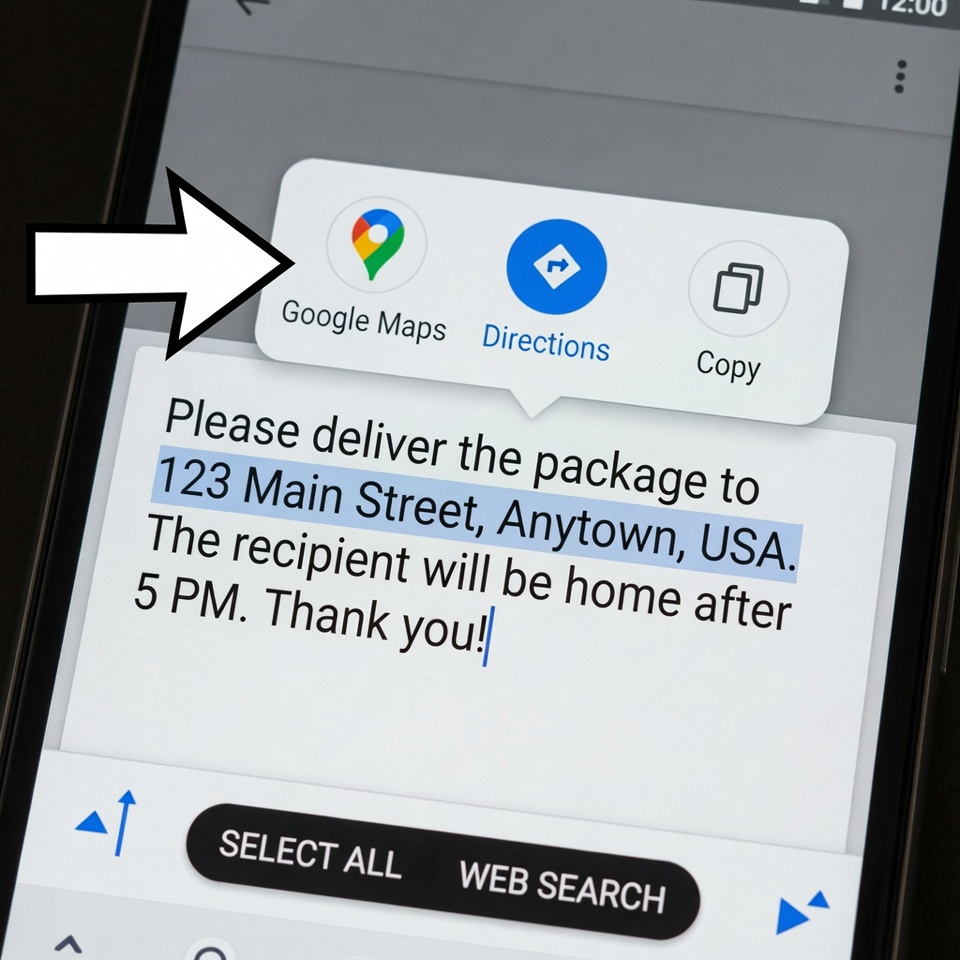
9. Smart Text Selection (The Context-Aware Genius) 🧠
The Feature: Android recognizes what you’ve highlighted and offers relevant actions automatically.
Example: Highlight an address? Android offers to open Google Maps. Highlight a phone number? Call or text. Highlight a date? Add to calendar. Highlight a tracking number? Track package.
Why It Beats iPhone: iPhone does this in some apps, but Android’s system-wide smart selection is faster and more integrated.
How to Use It: Just long-press on any text in any app. A toolbar will appear with context-specific actions.
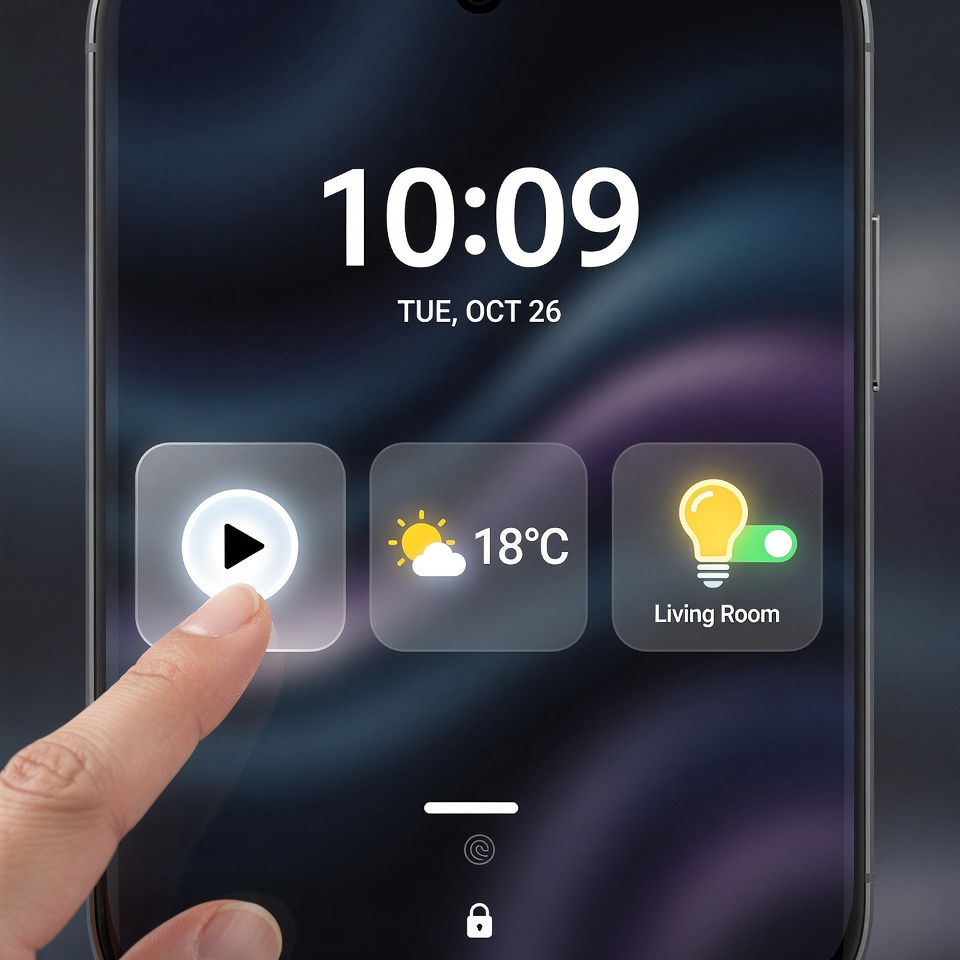
10. Lock Screen Widgets (Without Unlocking) 🧩
The Feature: Add small widgets to your lock screen for quick actions without unlocking.
Why It Beats iPhone: iPhone’s lock screen widgets are very limited (only a few Apple-approved ones). Android lets you add almost any app’s widget – music controls, weather, step counter, calendar, even smart home toggles.
How to Add (Android 12+): On your lock screen, long-press an empty area. Tap Customize. Tap the widget area below the clock. Choose from available widgets.
Pro Tip: Add a voice recorder widget for quick note-taking, or a smart home toggle for lights.
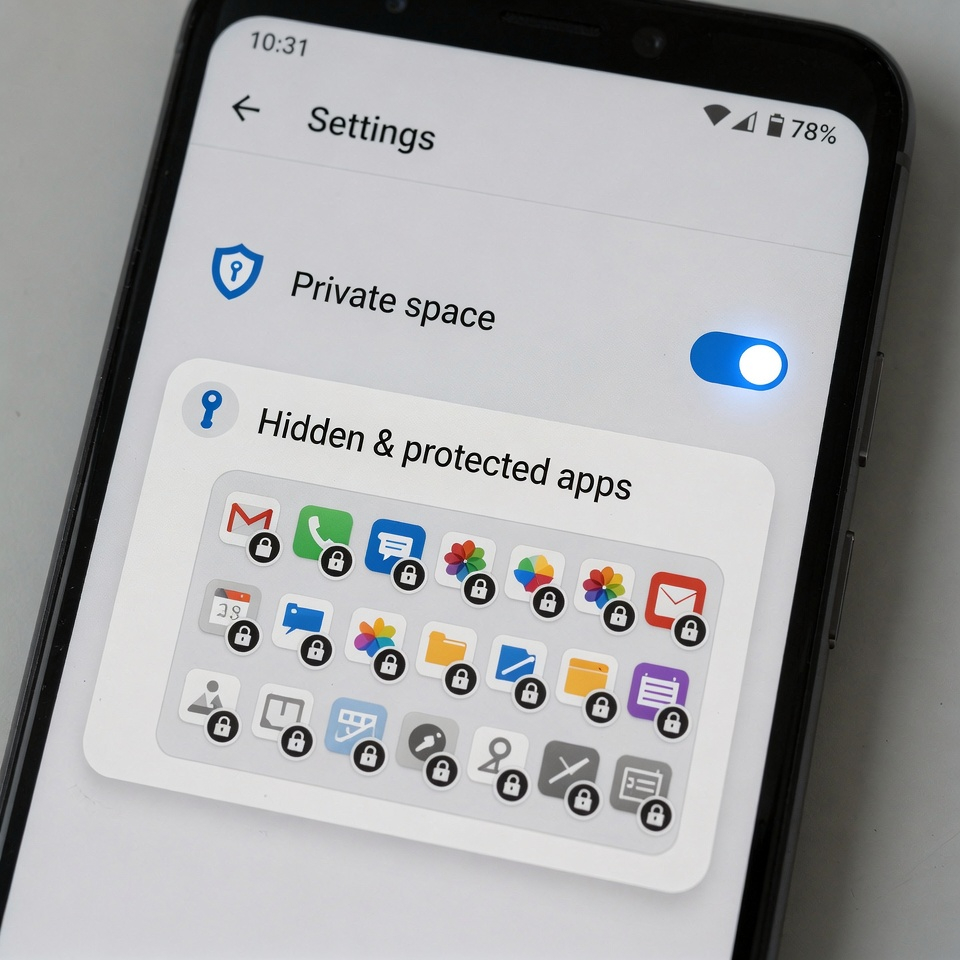
11. Private Space (App Lock Without Third-Party Apps) 🔒
The Feature: A hidden, password-protected space on your phone for sensitive apps.
Why It Beats iPhone: iPhone has no native way to lock individual apps. You need a third-party app (which can be buggy). Android (Android 15+) has a built-in Private Space.
How to Find It: Settings > Security & Privacy > Private Space. Set up a separate PIN. Move apps (banking, photos, messaging) into this space. They disappear from your main app drawer until you unlock the space.
Pro Tip: You can hide the Private Space icon entirely. To access it, type your secret code in the phone dialer or search bar.
12. Offline Google Maps (Entire Cities on Your Phone) 🗺️
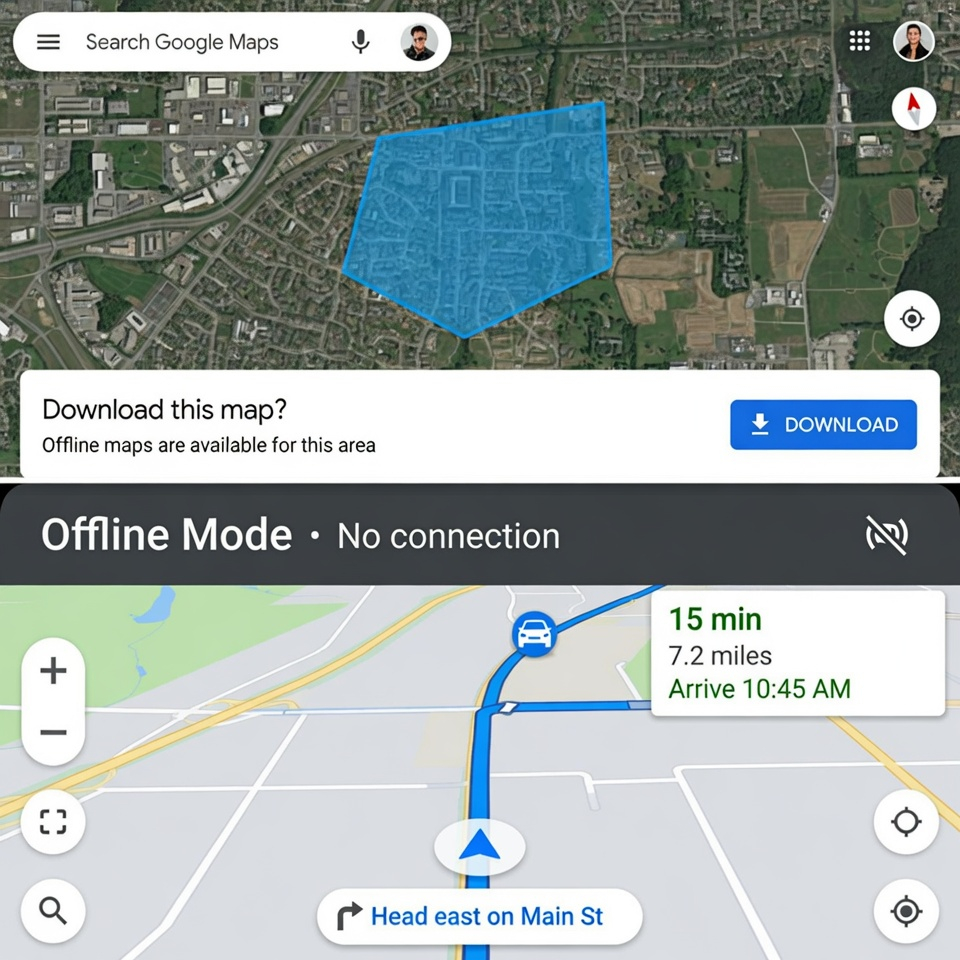
The Feature: Download entire cities, regions, or even countries to your phone for offline navigation.
Why It Beats iPhone: Apple Maps allows limited offline use, but Google Maps’ offline feature is more robust. You can search, get driving directions, and even see business hours – all without signal.
How to Do It: Open Google Maps > Tap your profile picture > Offline Maps > Select Your Own Map. Pinch and zoom to select the area you want. Tap Download.
Pro Tip: Download maps over Wi-Fi before traveling. Set them to auto-update. You’ll never be lost again.
Bonus: How to Find Even More Hidden Features
Your phone manufacturer (Samsung, Pixel, Motorola) adds its own secret features. To find them:
- Search your settings: Use the search bar in Settings. Type gesture, edge, or lab.
- Check Modes and Routines (Samsung) or Rules (Pixel) for automation.
- Explore Developer Options (tap Build Number 7 times in About Phone) for advanced tweaks (but be careful!).
The Bottom Line
Android doesn’t get enough credit for its thoughtful, user-first features. While iPhone excels at polish and ecosystem lock-in, Android gives you freedom, customization, and genuinely useful tools that make your daily life easier. The best phone isn’t about the logo—it’s about the features you actually use.
Go ahead. Try one of these today. Your Android is more powerful than you think. 🚀











 English
  Deutsch
  Français
  Italiano
  Español
  Čeština
  Polski
  Bahasa Indonesia
  Türkçe
  Svenska
  Українська
  Português do Brasil