





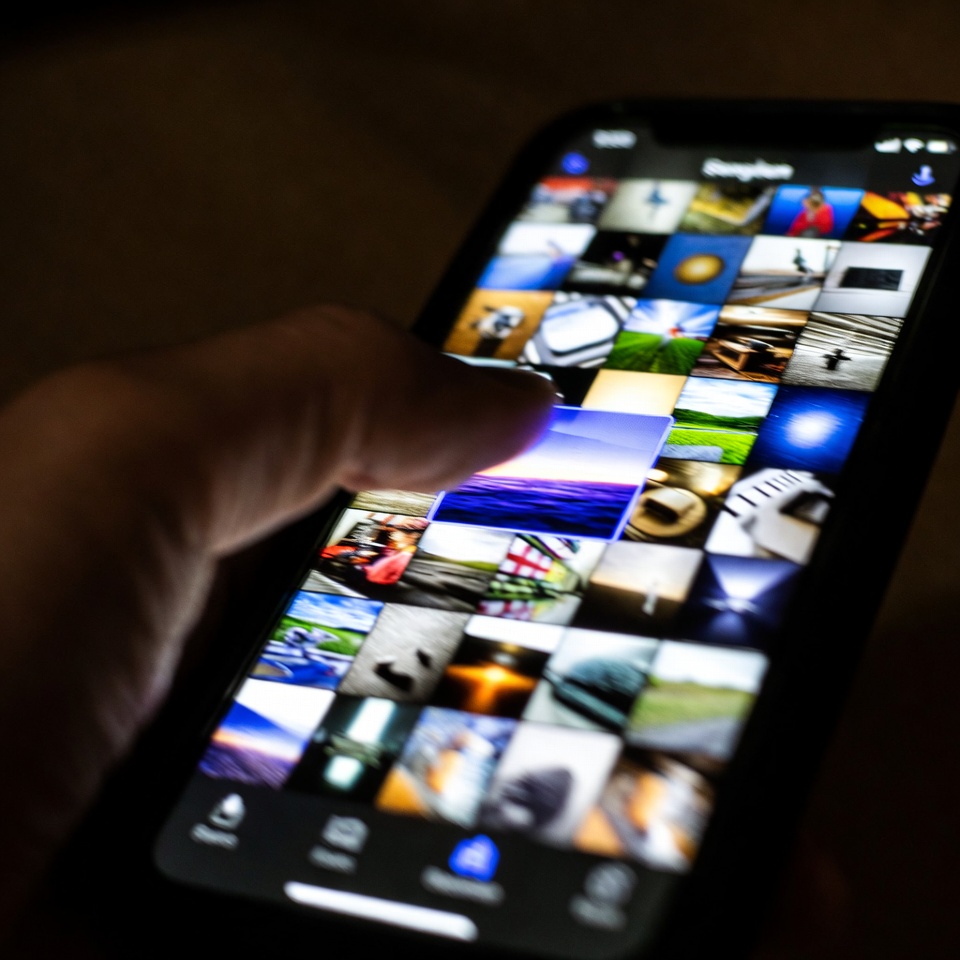
Think you know your iPhone inside and out? Think again. Buried beneath that sleek glass screen are some seriously cool tricks that Apple doesn’t exactly advertise. Mastering these will not only save you time but will make you the go-to iPhone wizard among your friends. ✨
Get ready to have your mind blown. Here are 10 hidden iPhone features you probably didn’t know about.
1. The Secret Trackpad 🖱️
The Trick: Ever tried to edit text and found yourself jabbing at the screen, trying to place the cursor perfectly between two letters? There’s a better way.
How to Do It: Simply press and hold the Space Bar on your keyboard. After a second, the keys will fade away, and the entire keyboard area turns into a precise trackpad. Now you can slide your finger around to move the cursor with pixel-perfect accuracy. It’s a total game-changer for editing emails or messages.

2. Instantly Scan Documents Like a Pro 📄
The Trick: You don’t need a special scanner app. Your iPhone has a powerful one built right into the Notes app.
How to Do It: Open the Notes app and create a new note. Tap the camera icon, then select Scan Documents. Point your camera at a document, and it will automatically detect the edges and capture a perfect, flat scan. You can even save it as a multi-page PDF. Say goodbye to crooked, shadowy phone pics of important papers!
3. The Back-Tap Shortcut 👆
The Trick: You can turn the back of your iPhone into a secret button. This is maybe the coolest hidden feature.
How to Do It: Go to Settings > Accessibility > Touch > Back Tap. You can choose Double-Tap or Triple-Tap to trigger a huge range of actions: take a screenshot, open the camera, control your smart home, run a shortcut, and more. It feels like you’ve unlocked a superpower.
4. One-Handed Mode for Big Screens 🤏
The Trick: Struggling to reach the top of your large-screen iPhone? Shrink the entire screen down with one gesture.
How to Do It: Gently swipe down on the very bottom edge of the screen (where the home bar is). The entire top half of the interface will slide down, putting everything in thumb’s reach. Swipe up on the bottom edge (or tap the top black area) to return it to normal.

5. Magical Text Replacement ✍️
The Trick: Tired of typing your full email address over and over? Set up custom shortcuts that auto-expand into longer phrases.
How to Do It: Go to Settings > General > Keyboard > Text Replacement. Tap the “+” icon. In the Phrase field, put your full email (e.g., your.name@gmail.com). In the Shortcut field, put a simple code (e.g., @@). Now, whenever you type @@ and hit space, it will instantly expand to your full email address. Perfect for addresses, phone numbers, or common responses.
Read also: Organize Wires with Household Items
6. Shake to Undo 🙃
The Trick: Made a mistake while typing? Instead of holding down the backspace key, just shake your iPhone. A pop-up will ask if you want to Undo your typing. It works for undoing deletions, pastes, and more. If you shake it again, you can Redo. It’s oddly satisfying.
7. The Hidden Magnifying Glass 🔍
The Trick: Your iPhone has a dedicated, powerful Magnifier tool that’s better than the camera app for reading fine print.
How to Do It: Go to Settings > Accessibility > Magnifier and turn it on. Now, whenever you triple-click your Side Button (or Home button on older models), it will instantly open a live magnifying glass with brightness and contrast controls. It’s perfect for menus in dark restaurants or reading tiny ingredient lists.
8. Quickly Select Multiple Photos 📸
The Trick: You need to select a bunch of photos to delete or share, but dragging your finger across hundreds of pics is tedious.
How to Do It: In your Photos album, tap Select in the top right. Then, without lifting your finger, drag it diagonally across the photos. You’ll select everything you swipe over in a fraction of a second. It’s a huge time-saver.
9. Measure Anything with AR 📏
The Trick: Your iPhone can literally function as a tape measure. It’s not just a gimmick—it’s surprisingly accurate for quick estimates.
How to Do It: Open the Measure app that comes pre-installed on your iPhone. Point your camera at an object, drag the dots to the start and end points, and it will give you the measurement. You can even measure rectangles, and it will automatically calculate the area.
10. Your iPhone Can Listen for You 👂
The Trick: This is a powerful accessibility feature everyone can use. Your iPhone can listen for specific sounds—like a doorbell, a crying baby, or a siren—and immediately send you an alert on your iPhone, Apple Watch, or with a flashing light.
How to Do It: Go to Settings > Accessibility > Sound Recognition and turn it on. Then tap “Sounds” and choose what you want it to listen for. It’s a fantastic tool for anyone who is hard of hearing, works in a loud environment, or just wants an extra layer of awareness.
There you have it! Ten features that transform your iPhone from a simple communication device into a powerful, personalized tool. Which one are you most excited to try first? Go ahead, give your inner tech genius a high-five! 🙌











 English
  Deutsch
  Français
  Italiano
  Español
  Čeština
  Polski
  Bahasa Indonesia
  Türkçe
  Svenska
  Українська
  Português do Brasil